Perform
Perform
When you perform with Fantasynth, you launch clips and scenes, and play along to music. Use faders, sync with the music.
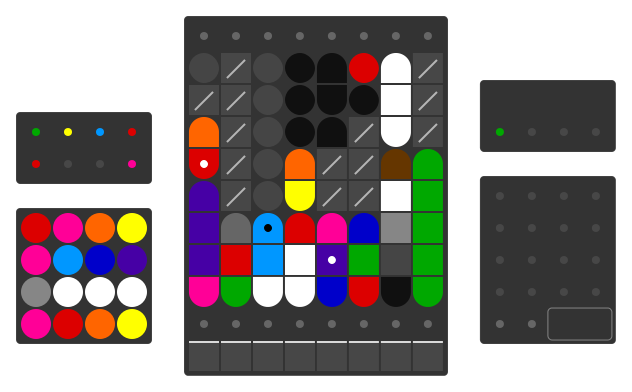
Fantasynth is built around the beat. Clips trigger in time with the music, scenes switch the whole look in one press, and faders shape the intensity as the track moves. Your music sets the timing. You control the visuals.
What you can do
- Launch clips by clicking pads, triggering them with a MIDI controller, or tapping them on your phone
- Recall scenes to switch between saved looks instantly
- Move faders to control the intensity of each track
- Sync to music by uploading a track and mapping it, or beat matching an external source
- Use the transport to play, pause, and reset
- Toggle view options like wireframe and post-processing on the fly
Play from a phone
Your phone or tablet can hold the same controls in your hand. The operator remote gives you scene launchers, clip shortcuts, transport, a waveform strip, and a shared fader, paired with your computer by scanning a QR code. See Remote Control.
The clip grid
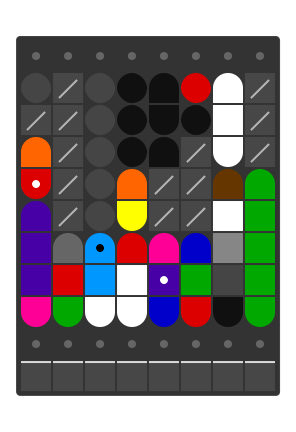
The central grid holds your clips. Each column is a track. Launch a clip by clicking its pad. The row of faders below the grid controls the intensity of each track.
Scenes
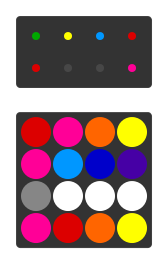
The left panel holds your scenes. Press a pad to recall a saved scene.
Pads and tempo
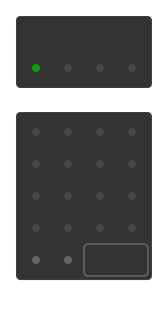
The right panel holds pad controls, a beat counter, and the current tempo.
Keyboard shortcuts
Playback
| Key | Action |
|---|---|
| Space | Play / Pause |
| Arrow Right | Next frame |
| Escape | Stop |
Scenes
The 4x4 scene grid maps to your keyboard in rows:
| Keys | Scenes |
|---|---|
| 1 2 3 4 | Scenes 1 to 4 |
| Q W E R | Scenes 5 to 8 |
| A S D F | Scenes 9 to 12 |
| Z X C V | Scenes 13 to 16 |
You can also see all shortcuts in the app under Settings > Shortcuts.